以下配置为将所有收到的80端口的请求都重定向到443端口,这会把此ip下的所有域名都转换:
server {
listen 80;
listen [::]:80;
server_name _;
return 301 https://$host$request_uri;
}listen 80 default_server 表示这是唯一监听80端口的server块
server_name _ 表示监听所有使用的域名
以下配置为重定向特定域名的请求,此方式适用于此ip下绑定多个域名的情况:
server {
listen 80;
listen [::]:80;
server_name your.domain;
return 301 https://your.domain$request_uri;
}设定我们的域名只接收443端口的访问:
server {
listen 443 ssl default_server;
listen [::]:443 ssl;
server_name foo.com;
}
server {
listen 443 ssl;
listen [::]:443 ssl;
server_name bar.com;
}
...
只能设置一个域名为default_server。
]]>/usr/local/sbin 加入path,使用下面指令可以将其加入path:export PATH=$PATH:/usr/local/sbin
此指令只对当前终端窗口有效,关闭后失效。可将命令加入 ~/.bash_profile 文件使设置永久有效,此文件一般不存在,可新建:
vim ~/.bash_profile
加入代码:
export PATH=$PATH:/usr/local/sbin
关闭文件后,重新载入配置:
source ~/.bash_profile
重新运行命令测试是否已经可用。
]]>通过设置代理来让终端流量走代理端口(socks5适用于大部分的流量,有些程序不走http),在终端输入:
export all_proxy=socks5://127.0.0.1:1080
取消代理:
unset all_proxy
也可以通过创建alias来设置一个“快捷命令”运行此命令:
alias proxy='export all_proxy=socks5://127.0.0.1:1080'
alias unproxy='unset all_proxy'
然后开启代理就输入:
proxy
取消代理输入:
unproxy
设置只对当前窗口有效,关闭后取消。
可以通过bash文件保存alias,快速设置/取消proxy。
打开 ~/.bash_profile, ~/.bashrc, 或者 ~/.profile,The difference between these files is (primarily) when they get read by the shell. If you're not sure where to put it, ~/.bashrc is a good choice.
此文件一般不存在,可新建:
vim ~/.bashrc
将下面代码加入文件:
alias proxy='export all_proxy=socks5://127.0.0.1:1080 && export http_proxy=http://127.0.0.1:1082 && export https_proxy=http://127.0.0.1:1082'
alias unproxy='unset all_proxy && export http_proxy= && export https_proxy='保存文件后,重新载入配置:
source ~/.bashrc
运行命令测试alias是否生效:
proxy
对于 macOS,默认的 shell 是 zsh,它的默认加载文件是 ~/.zshrc,所以修改上面的文件后每次启动 zsh 都需要手动运行 source ~/.bashrc 指令,解决方法打开 ~/.zshrc,在文件内加入 source ~/.bashrc 即可,这样每次启动就可以正常使用设置的 alias 了。
cmd 中用 set http_proxy 设置
set http_proxy=http://127.0.0.1:1082
set https_proxy=http://127.0.0.1:1082
恢复
set http_proxy=
set https_proxy=
command prompt 使用 doskey 命令建立类似 alias 功能:
新建 cmd_profile.bat 文件内容如下:
@echo off
doskey phttp = set http_proxy=http://127.0.0.1:1082
doskey phttps = set https_proxy=http://127.0.0.1:1082
doskey unphttp = set http_proxy=
doskey unphttps = set https_proxy=打开注册表:win + r 输入 regedit,定位到 HKEY_CURRENT_USER\Software\Microsoft\Command Processor\,右键 new - string value,重命名为:Autorun,值设置为 bat 文件路径:
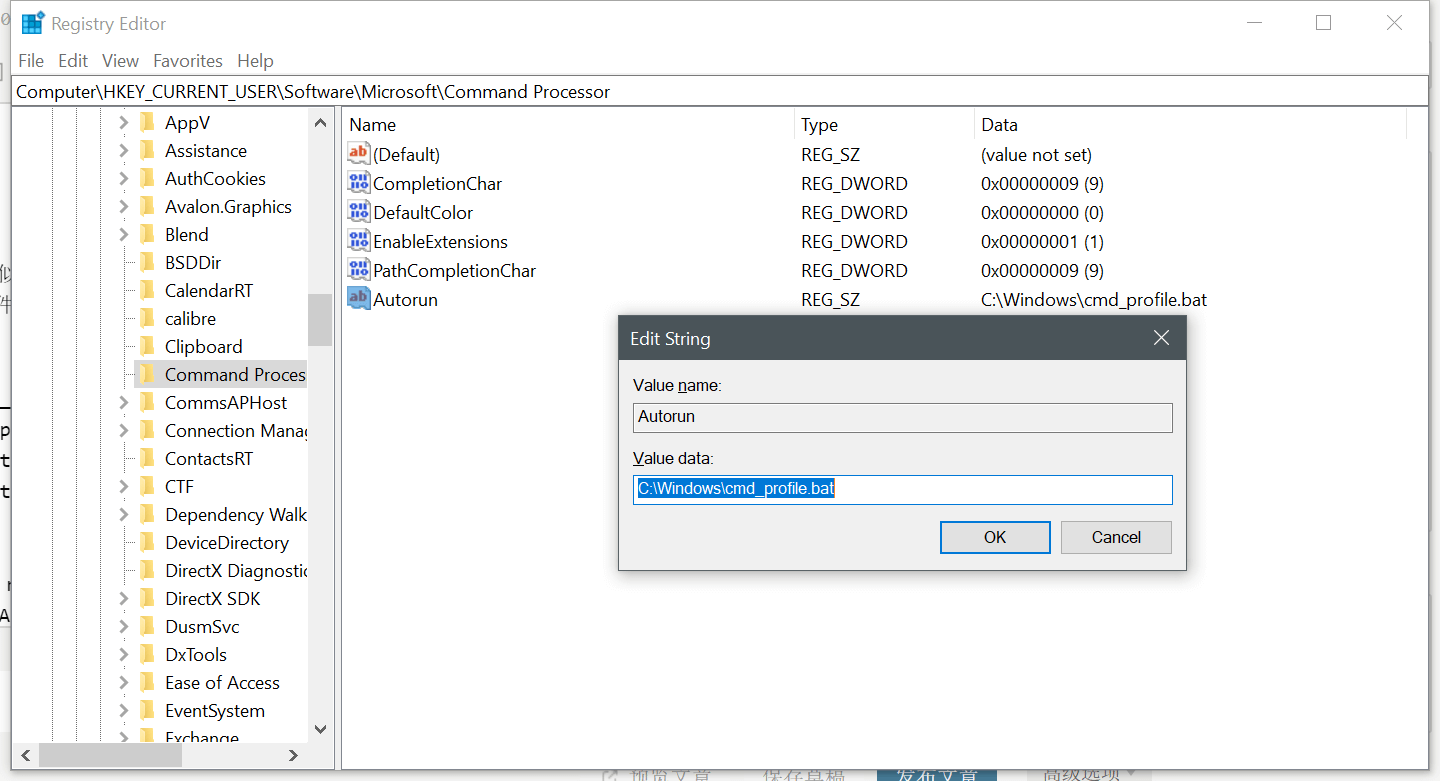
重新打开 cmd 输入 phttp phttps,查看当前IP:
curl ipecho.net/plain ; echo
注意,如果默认终端是 powershell 则无法通过上述方式在注册表加载 bat 脚本,建议将脚本路径设置到系统 path 中,然后启动 CMD 后输入脚本文件名运行一次即可。
power shell 稍微麻烦一下,需要建立 PowerShell profile 文件设置 alias。
在启动 power shell 时会执行 profile 里的命令,类似与上面的 .bashrc 文件,关于建立 PowerShell profile 文件参考:https://docs.microsoft.com/en-us/previous-versions/system-center/service-manager-2010-sp1/ff461033(v=technet.10)?redirectedfrom=MSDN
开始建立 profile,首先以管理员权限运行 power shell,执行以下命令:
Test-path $profile
如果返回值为 false 执行以下命令,返回值为 true 跳过此步骤:
New-item –type file –force $profile
打开 profile 文件:
Notepad $profile
加入以下内容:
# Set-Proxy command
Function SetProxy() {
Param(
$Addr = $null,
[switch]$ApplyToSystem
)
$env:HTTP_PROXY = $Addr;
$env:HTTPS_PROXY = $Addr;
$env:http_proxy = $Addr;
$env:https_proxy = $Addr;
if ($addr -eq $null) {
[Net.WebRequest]::DefaultWebProxy = New-Object Net.WebProxy;
if ($ApplyToSystem) { SetSystemProxy $null; }
Write-Output "Successful unset all proxy variable";
}
else {
[Net.WebRequest]::DefaultWebProxy = New-Object Net.WebProxy $Addr;
if ($ApplyToSystem) {
$matchedResult = ValidHttpProxyFormat $Addr;
# Matched result: [URL Without Protocol][Input String]
if (-not ($matchedResult -eq $null)) {
SetSystemProxy $matchedResult.1;
}
}
Write-Output "Successful set proxy as $Addr";
}
}
Function SetSystemProxy($Addr = $null) {
Write-Output $Addr
$proxyReg = "HKCU:\Software\Microsoft\Windows\CurrentVersion\Internet Settings";
if ($Addr -eq $null) {
Set-ItemProperty -Path $proxyReg -Name ProxyEnable -Value 0;
return;
}
Set-ItemProperty -Path $proxyReg -Name ProxyServer -Value $Addr;
Set-ItemProperty -Path $proxyReg -Name ProxyEnable -Value 1;
}
Function ValidHttpProxyFormat ($Addr) {
$regex = "(?:https?:\/\/)(\w+(?:.\w+)*(?::\d+)?)";
$result = $Addr -match $regex;
if ($result -eq $false) {
throw [System.ArgumentException]"The input $Addr is not a valid HTTP proxy URI.";
}
return $Matches;
}
Set-Alias -Name set-proxy -Value SetProxy上面的脚本主要就是建立了三个 function:设置代理 设置系统代理 检查 uri 是否正确,然后设置 alias。
关于 Set-Alias 语法参考:https://docs.microsoft.com/en-us/powershell/module/microsoft.powershell.utility/set-alias?view=powershell-7
保存文件后,继续输入下面命令:
Set-ExecutionPolicy RemoteSigned
. $profile
以上就完成了 profile 的设置,使用语法如下:
# 设置当前窗口代理 :
set-proxy http://your-proxy:port
#设置当前窗口代理 + 系统代理:
set-proxy http://your-proxy:port -ApplyToSystem
#取消当前窗口代理:
set-proxy (没有参数)
#取消当前窗口代理 + 系统代理:
set-proxy -ApplyToSystem测试代理然后查看当前IP:
set-proxy http://127.0.0.1:1082
curl https://info.niekun.net/ip ; echo
]]>fs::path childDir = np;
childDir += "/\\" + dir_itr->path().filename().string();
const char* c_childDir = childDir.string().c_str();
我在本机实验是没有问题,但在他人电脑上提示directory error。
我将path里的地址先存放到一个string里然后在转换为char*,发现问题解决了。
我想可能的原因就是path不能直接使用其指针地址。下面是修改后的程序片段:
string s_childDir = newDir;
s_childDir += "/\\" + dir_itr->path().filename().string();
const char* c_childDir = s_childDir.c_str();
以上就是关于boost库里使用path的指针问题的解决方法。
]]>GitHub:https://github.com/v2ray/v2ray-core
官网:https://www.v2ray.com
客户端下载:https://github.com/v2ray/v2ray-core/releases
V2Ray 在以下平台中可用:
Windows 7 及之后版本(x86 / amd64);
Mac OS X 10.10 Yosemite 及之后版本(amd64);
Linux 2.6.23 及之后版本(x86 / amd64 / arm / arm64 / mips64 / mips);
包括但不限于 Debian 7 / 8、Ubuntu 12.04 / 14.04 及后续版本、CentOS 6 / 7、Arch Linux;
FreeBSD (x86 / amd64);
OpenBSD (x86 / amd64);
Dragonfly BSD (amd64);
Linux 安装脚本
V2Ray 提供了一个在 Linux 中的自动化安装脚本。这个脚本会自动检测有没有安装过 V2Ray,如果没有,则进行完整的安装和配置;如果之前安装过 V2Ray,则只更新 V2Ray 二进制程序而不更新配置。
运行下面的指令下载并安装 V2Ray。当 yum 或 apt-get 可用的情况下,此脚本会自动安装 unzip 和 daemon。这两个组件是安装 V2Ray 的必要组件。如果你使用的系统不支持 yum 或 apt-get,请自行安装 unzip 和 daemon
bash <(curl -L -s https://install.direct/go.sh)
此脚本会自动安装以下文件:
/usr/bin/v2ray/v2ray:V2Ray 程序;/usr/bin/v2ray/v2ctl:V2Ray 工具;/etc/v2ray/config.json:配置文件;/usr/bin/v2ray/geoip.dat:IP 数据文件/usr/bin/v2ray/geosite.dat:域名数据文件此脚本会配置自动运行脚本。自动运行脚本会在系统重启之后,自动运行 V2Ray。目前自动运行脚本只支持带有 Systemd 的系统,以及 Debian / Ubuntu 全系列。
运行脚本位于系统的以下位置:
/etc/systemd/system/v2ray.service: Systemd/etc/init.d/v2ray: SysV脚本运行完成后,你需要:
编辑 /etc/v2ray/config.json 文件来配置你需要的代理方式;
运行 service v2ray start 来启动 V2Ray 进程;
之后可以使用 service v2ray start|stop|status|reload|restart|force-reload 控制 V2Ray 的运行。
config.json格式
}
"log": {},
"api": {},
"dns": {},
"stats": {},
"routing": {},
"policy": {},
"reverse": {},
"inbounds": [],
"outbounds": [],
"transport": {}
}
服务器config.json的配置
{
"log" : {
"access": "/var/log/v2ray/access.log",
"error": "/var/log/v2ray/error.log",
"loglevel": "warning"
},
"inbounds": [{
"port": port,
"listen":"127.0.0.1",
"protocol": "vmess",
"settings": {
"clients": [
{
"id": "UUID",
"level": 1,
"alterId": 64
}
]
},
"streamSettings": {
"network": "ws",
"wsSettings": {
"connectionReuse": true,
"path": "/proxy/path"
}
}
}],
"outbounds": [{
"protocol": "freedom",
"settings": {}
},{
"protocol": "blackhole",
"settings": {},
"tag": "blocked"
}],
"routing": {
"rules": [
{
"type": "field",
"ip": ["geoip:private"],
"outboundTag": "blocked"
}
]
}
}
port:v2ray监听端口,如果使用Nginx端口转发需要做对应设置
id:输入一个UUID,可在UUID Generator生成一个,服务端和客户端要一致
path:我用的是ws协议,此路径为虚拟网站路径,需要在Nginx里定义
修改好后运行:service v2ray restart启动服务
Nginx.conf配置
location /proxy/path {
proxy_redirect off;
proxy_pass http://127.0.0.1:port;
proxy_http_version 1.1;
proxy_set_header Upgrade $http_upgrade;
proxy_set_header Connection "upgrade";
proxy_set_header Host $http_host;
}
修改完成后运行:service nginx reload重新加载配置文件
客户端config.json配置
{
"log": {
"loglevel": "warning"
},
"inbounds": [{
"port": 1080,
"listen": "127.0.0.1",
"tag": "socks-inbound",
"protocol": "socks",
"settings": {
"auth": "noauth",
"udp": false,
"ip": "127.0.0.1"
},
"sniffing": {
"enable": true,
"destOverride": ["http", "tls"]
},
"allocate": {
"strategy": "always",
"refresh": 5,
"concurrency": 3
}
},{
"port": 1082,
"listen": "127.0.0.1",
"tag": "http-inbound",
"protocol": "http",
"settings": {
"auth": "noauth",
"udp": false,
"ip": "127.0.0.1"
},
"sniffing": {
"enable": true,
"destOverride": ["http", "tls"]
},
"allocate": {
"strategy": "always",
"refresh": 5,
"concurrency": 3
}
}],
"outbounds": [{
"protocol": "vmess",
"settings": {
"vnext": [
{
"address": "you.domain",
"port": 443,
"users": [
{
"id": "UUID",
"alterId": 64,
"security": "auto",
"level": 1
}
]
}
]
},
"tag": "out-Proxy",
"streamSettings": {
"network": "ws",
"security": "tls",
"tlsSettings": {
"serverName": "you.domain"
},
"wsSettings": {
"path": "/proxypath"
}
},
"mux": {
"enabled": true,
"concurrency": 8
}
},{
"protocol": "blackhole",
"settings": {},
"tag": "blocked"
},{
"protocol": "freedom",
"settings": {},
"tag": "direct"
}],
"routing": {
"domainStrategy": "IPOnDemand",
"rules":[
{
"type": "field",
"ip": ["geoip:private"],
"outboundTag": "blocked"
},
{
"type": "field",
"domain": ["geosite:category-ads"],
"outboundTag": "blocked"
},
{
"type": "field",
"domain": [
"360.com",
"360.cn",
"api.map.baidu.com",
"ps.map.baidu.com",
"sv.map.baidu.com",
"offnavi.map.baidu.com",
"newvector.map.baidu.com",
"ulog.imap.baidu.com",
"newloc.map.n.shifen.com",
"api.map.baidu.com",
"ps.map.baidu.com",
"sv.map.baidu.com",
"offnavi.map.baidu.com",
"newvector.map.baidu.com",
"ulog.imap.baidu.com",
"newloc.map.n.shifen.com"
],
"ip": [
"14.63.198.45/32",
"23.42.186.24/32",
"23.66.147.48/32",
"59.110.16.35/32",
"101.227.12.0/23",
"101.227.14.0/24",
"101.227.119.0/24",
"101.227.200.0/24",
"106.11.11.86/32",
"107.20.211.189/32",
"108.61.200.51/32",
"111.63.135.0/24",
"111.206.13.60/30",
"111.206.13.64/28",
"111.206.13.80/32",
"111.206.13.250/31",
"111.206.22.0/24",
"113.207.57.24/32",
"115.29.247.48/32",
"116.206.22.7/32",
"117.34.51.0/24",
"119.188.13.0/24",
"120.26.151.246/32",
"120.55.199.139/32",
"120.76.189.132/32",
"120.77.11.172/32",
"120.132.63.203/32",
"121.42.144.95/32",
"121.43.75.169/32",
"121.201.11.95/32",
"121.201.108.2/32",
"121.251.255.0/24",
"122.72.50.17/32",
"122.226.223.163/32",
"123.57.94.184/32",
"123.125.111.0/24",
"123.125.117.0/24",
"123.125.118.0/24",
"123.206.1.246/32",
"124.116.241.0/24",
"140.205.36.26/32",
"180.76.155.58/32",
"180.76.163.245/32",
"180.76.171.28/32",
"180.76.190.68/32",
"182.48.119.159/32",
"183.131.79.130/32",
"211.137.132.89/32",
"221.179.183.0/24",
"221.179.191.0/24"
],
"outboundTag": "blocked"
},
{
"type": "field",
"domain": [
"apple.com",
"icloud.com",
"itunes.com",
"mzstatic.com",
"icloud-content.com",
"geosite:cn"
],
"ip": [
"geoip:cn"
],
"outboundTag": "direct"
},
{
"type": "field",
"ip": [
"8.8.8.8"
],
"outboundTag": "out-Proxy"
},
{
"type": "chinasites",
"outboundTag": "direct"
},
{
"type": "chinaip",
"outboundTag": "direct"
}
]
},
"dns": {
"hosts": {
"domain:360.com": "127.0.0.1"
},
"servers": [
"1.1.1.1",
{
"address": "114.114.114.114",
"port": 53,
"domains": [
"geosite:cn"
]
},
"8.8.8.8",
"localhost"
]
},
"policy": {
"levels": {
"0": {
"uplinkOnly": 0,
"downlinkOnly": 0
}
},
"system": {
"statsInboundUplink": false,
"statsInboundDownlink": false
}
},
"other": {}
}
]]>官网:https://cloudflare.com
官方手册:https://support.cloudflare.com/hc/en-us/categories/200275218
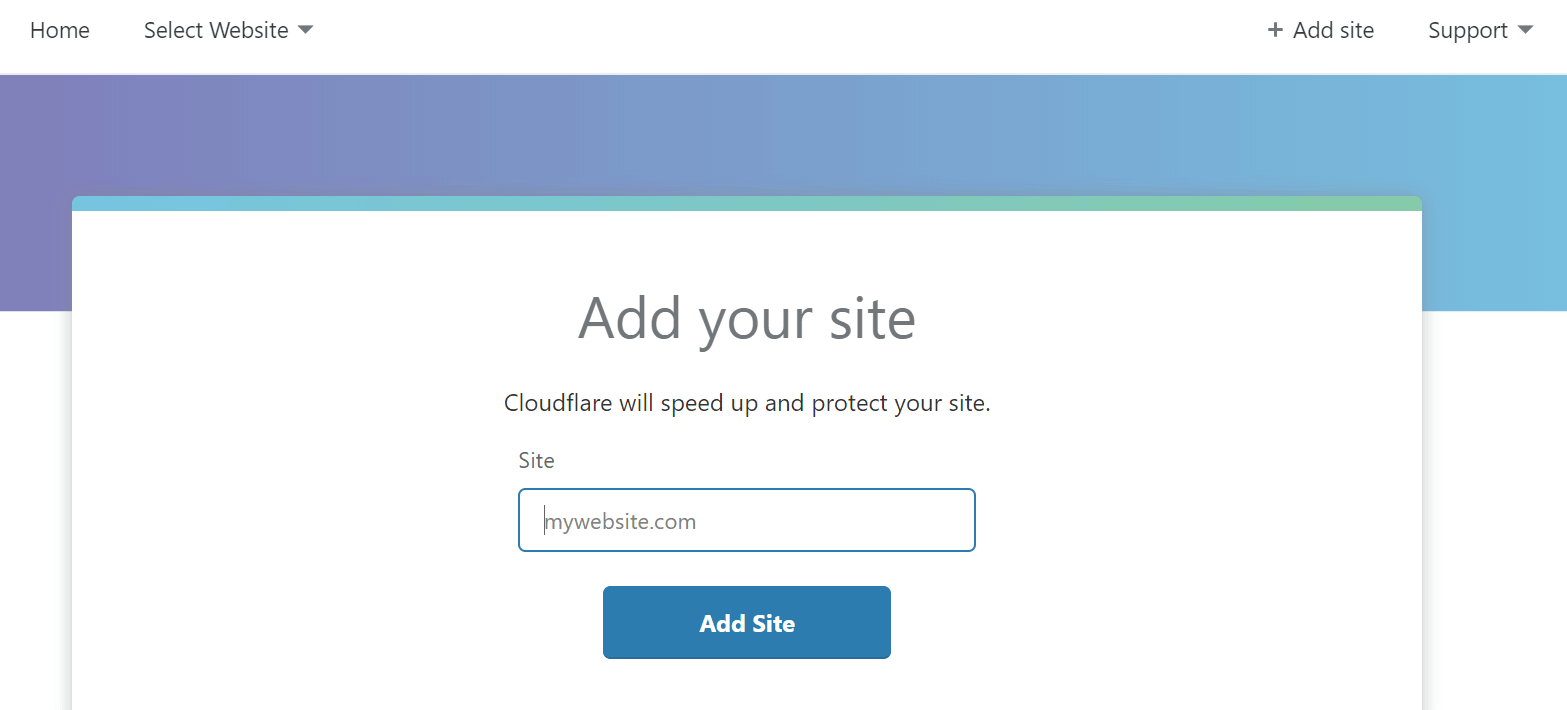
首先在官网注册账号,完成后点击右上角 + Add site,添加你的域名
输入你的域名后点击 add site,cloudflare会检测你的域名和ip,可能需要等待一会儿。

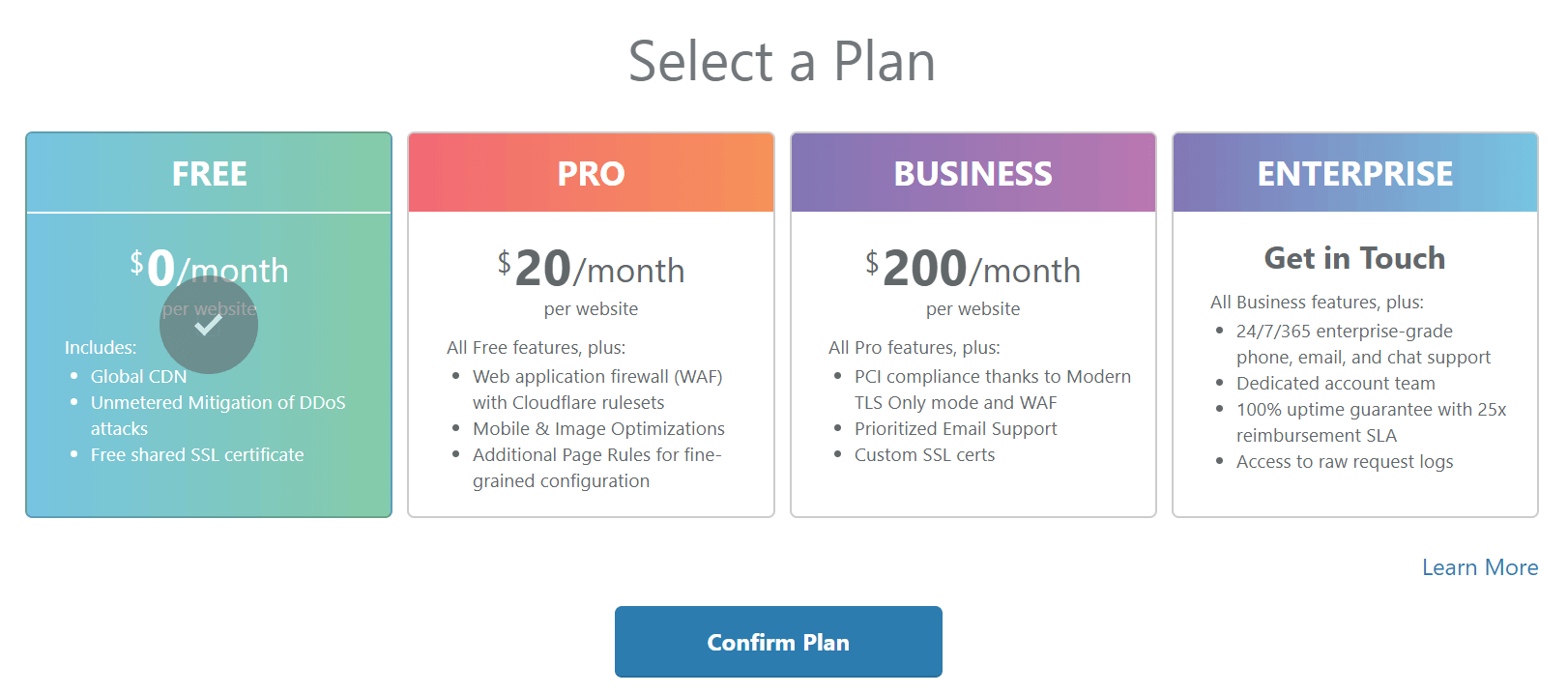
扫描成功后点击 Next,出现选择套餐,选择 free plan 后点击 Confirm Plan。

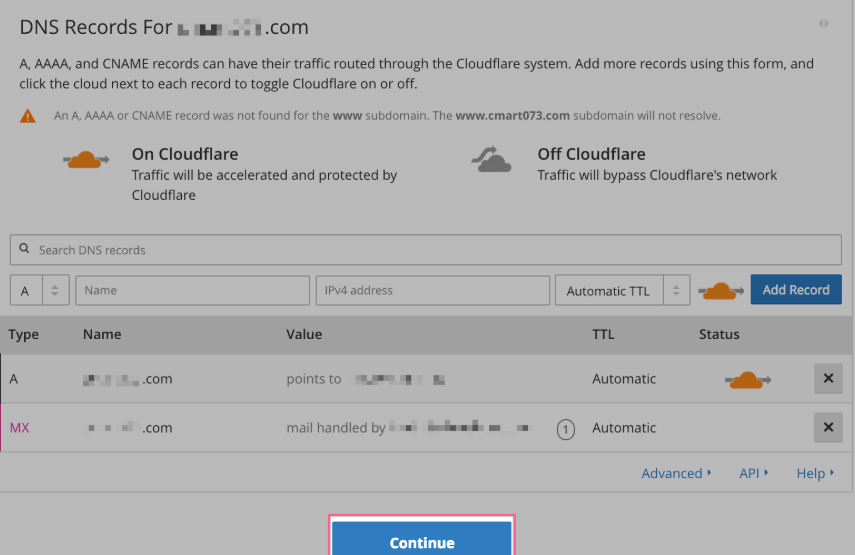
会显示当前发现的 DNS records 列表,包含你的域名。在列表里,选择你需要开启cloudflare的子域名,点击右侧的云标识使能。一些records, 像是 MX, 不要让它通过 Cloudflare (no cloud).

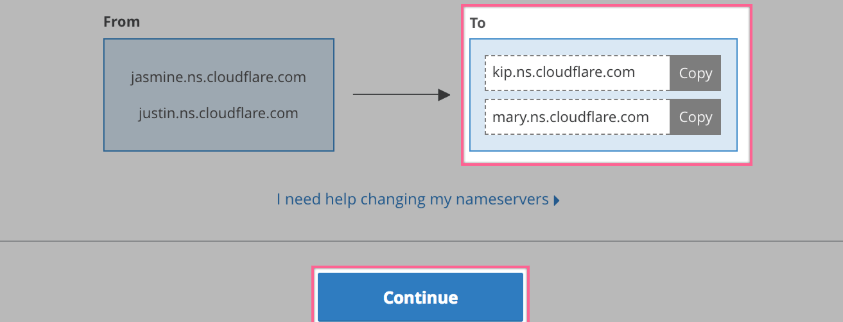
最后一步,会给你提供 Cloudflare nameservers。需要将这个NS填到你的域名提供商的设置里。设置完成后,如果更新完成,cloudflare里对应status会显示active。

以上就完成了cloudflare的启用,NS的刷新可能需要几个小时才完成。
接下来可以进入对应域名的 Crypto 栏设置 Universal SSL等相关优化参数。
]]>以上引用自freenom官网。
官网:https://www.freenom.com
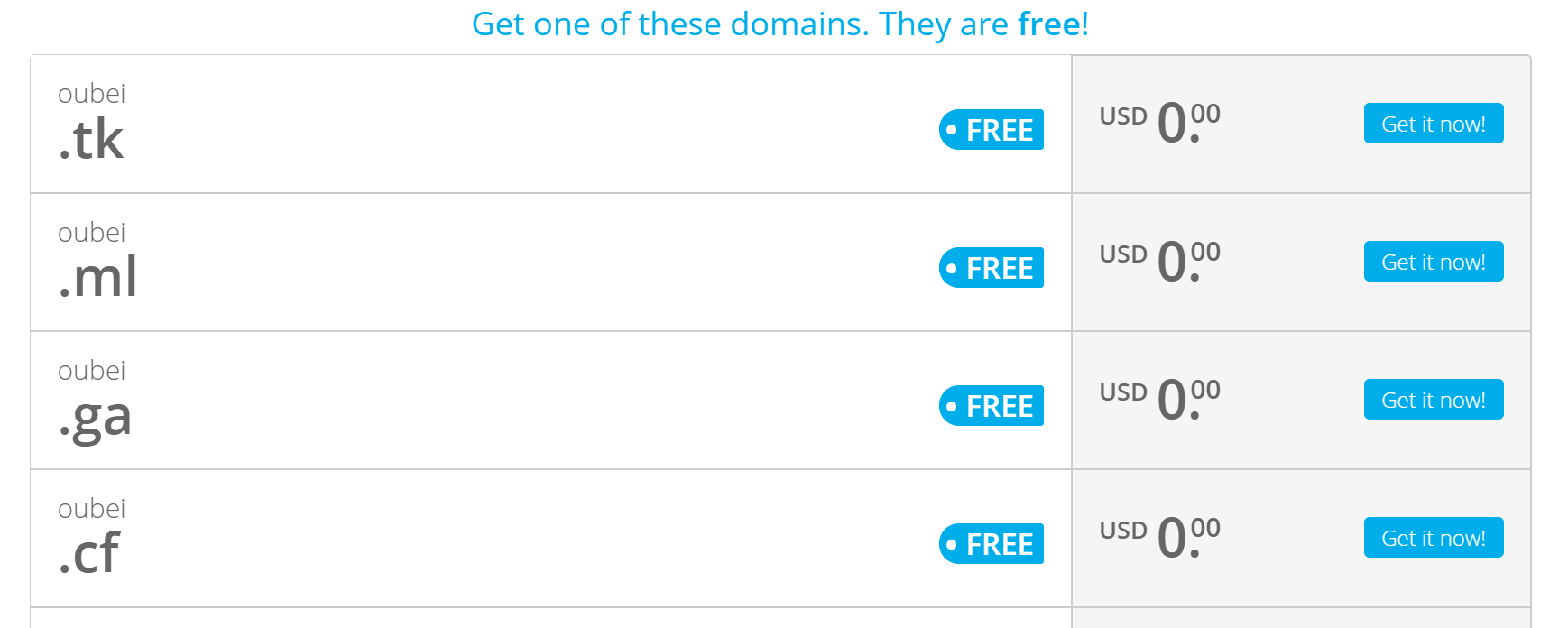
可用免费域名:.TK / .ML / .GA / .CF / .GQ
注册和续费:1至12个月 免费更新(无限延期)
进入官网,点击下方提示框注册 sign up
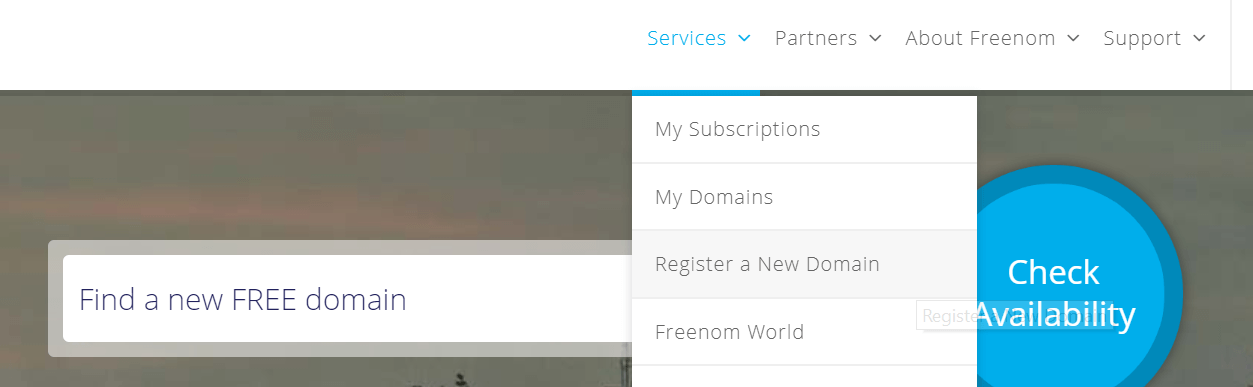
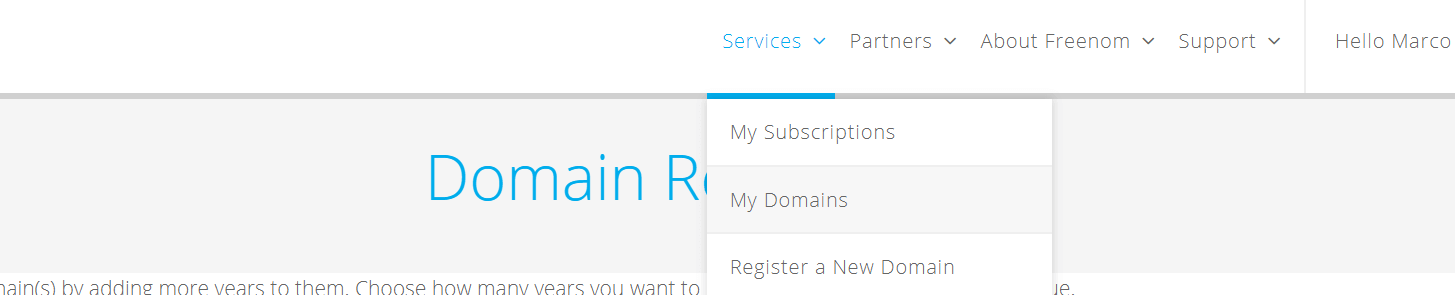
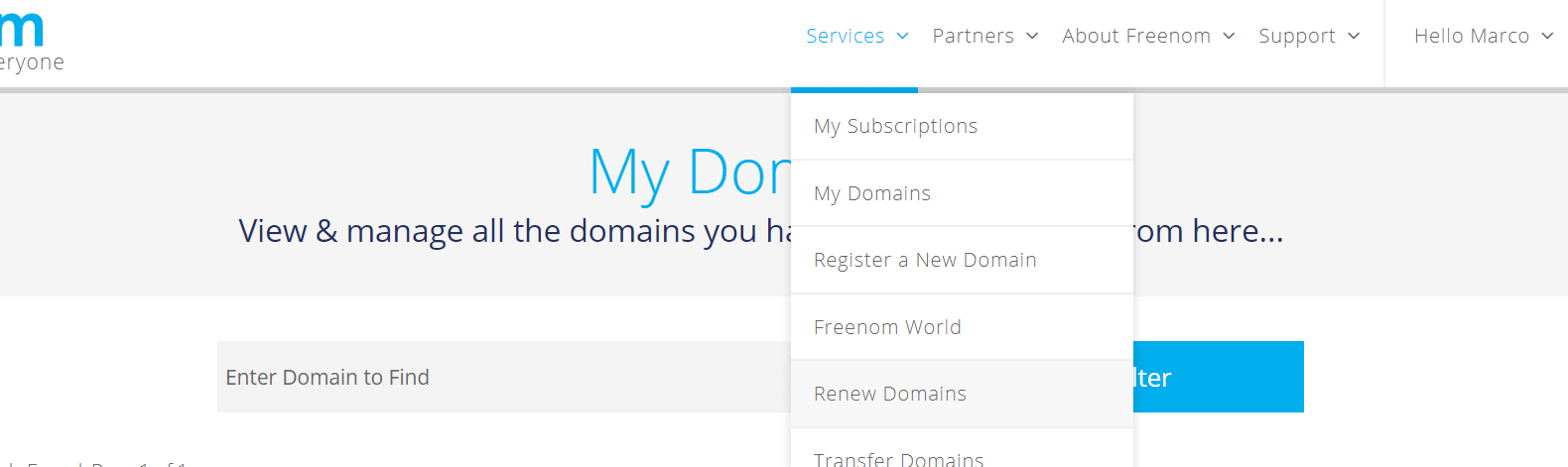
注册完成后,点击service - register a new domian

开始搜索想要的域名,点击check availability,注意只需要输入前缀,不需要加域名后缀

选择好想要的免费域名后,点击右侧的 get it now,然后在网页最上边右侧点击checkout
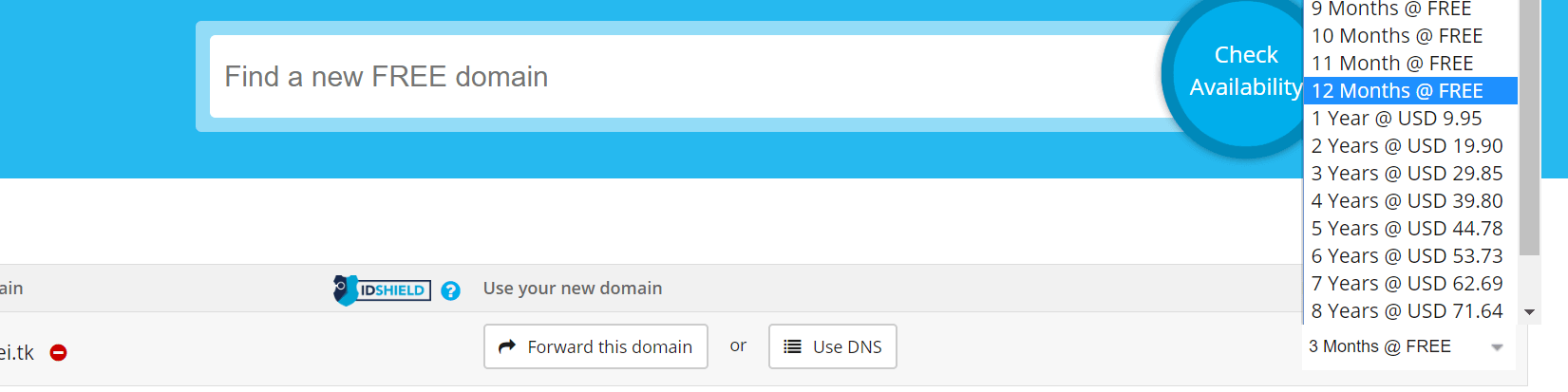
下一步在右侧period选择 12 months @ free,然后continue

Review & Checkout界面填写你的一些信息,点击complete order完成购买。
service - mydomain 查看当前已有域名,申请时间及过期时间

选择刚申请的域名,点击右侧manage domain进入管理界面
使用freenomDNS默认的DNS服务器:
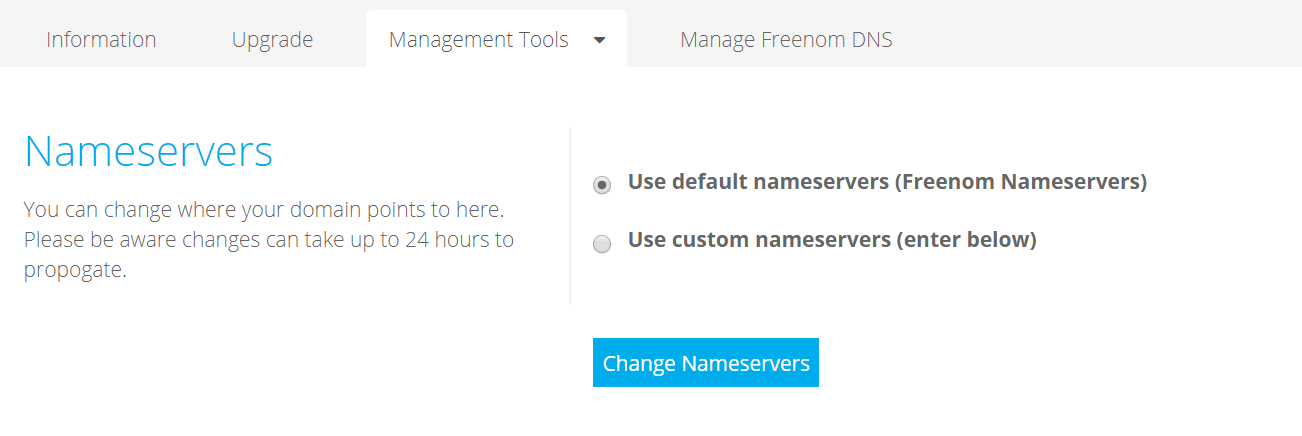
点击management tools - nameservers,选择Use default nameservers (Freenom Nameservers),点击change nameservers

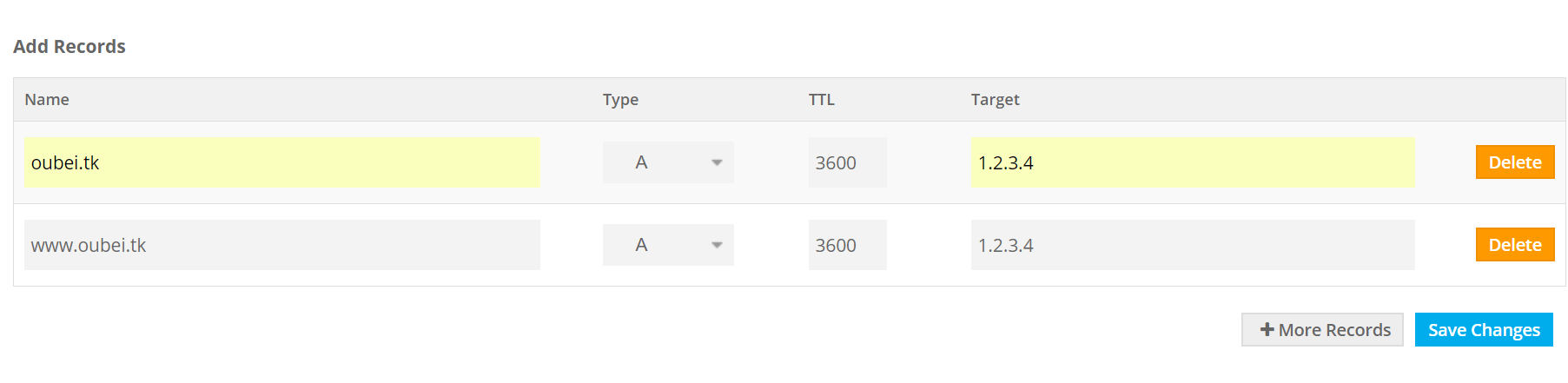
点击manage freenomDNS开始设置域名解析,添加两条A记录,target里填写你的服务器ip,点击save changes保存

域名解析一般需要一点时间,等待一会儿应该就可以访问你的域名了。
由于免费域名最长为12个月,到期后会自动收回,所以需要在到期前手动续期一下。
免费续期时间为到期前14天内可申请,到期前freenom会发送邮件提醒。
进入service - renew domain,开始续期

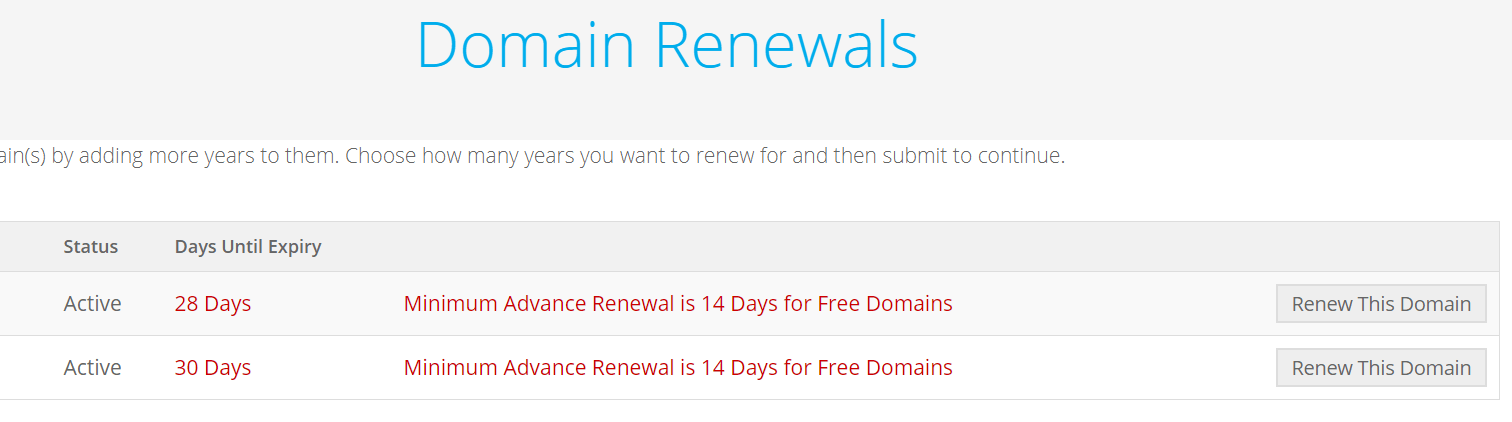
这里会列出你的所有域名状态,及剩余到期时间,如果剩余时间在14天内,可点击右侧renew this domain进入续期界面。(我的域名剩余时间大于14天,所以还无法续期)

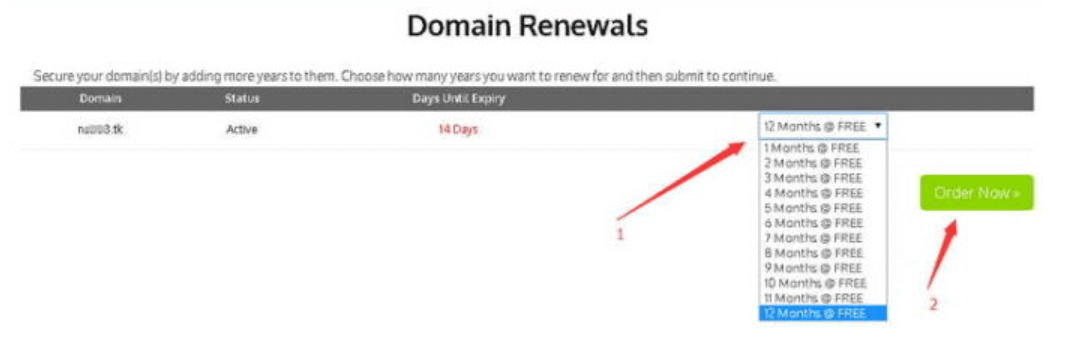
进入续期界面后右侧选择 12 months @ free,点击order now完成免费续期。

返回后可以看到剩余时间已经加上1年了。
]]>acme 协议, 可以从 letsencrypt 生成免费的证书.官方说明:https://github.com/Neilpang/acme.sh
安装很简单:
apt-get install curl
curl https://get.acme.sh | sh
安装过程进行了以下几步:
/root/.acme.sh/alias acme.sh="/root/.acme.sh/acme.sh"cronjob 的任务可以使用命令 crontab -e 查看。
新版的acme.sh是在 .bashrc 里引用了. "/root/.acme.sh/acme.sh.env",此文件里定义了上面的alias。
如果安装完成后无法运行命令:acme.sh,试着运行:source ~/.bashrc重新加载alias,或者检查此文件内容。
acme.sh 实现了 acme 协议支持的所有验证协议. 一般有两种方式验证: http 和 dns 验证。dns 验证可以生成泛域名的证书,更加方便的适用于二级域名。
需要在你的网站根目录下放置一个文件, 来验证你的域名所有权,完成验证. 然后就可以生成证书了.
acme.sh --issue -d domain.you -d www.domain.you -d abc.domain.you --webroot /your/www/root
只需要指定域名, 可以同时生成多个域名到一个证书,并指定域名所在的网站根目录. acme.sh 会全自动的生成验证文件, 并放到网站的根目录, 然后自动完成验证. 最后会聪明的删除验证文件. 整个过程没有任何副作用.
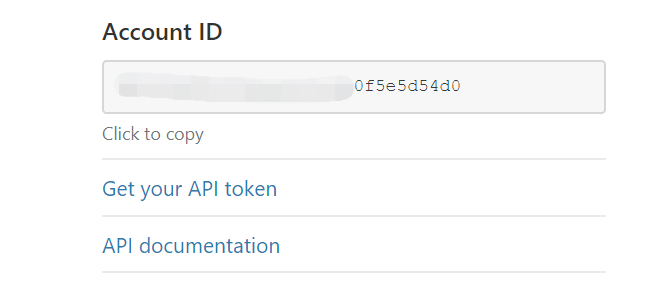
可以使用域名解析服务商的 api 来解析,我使用的是 cloudflare 作域名解析,进入 cf 的对应域名,在网站右下角有 account ID,记录下来,然后点击 get your api token:
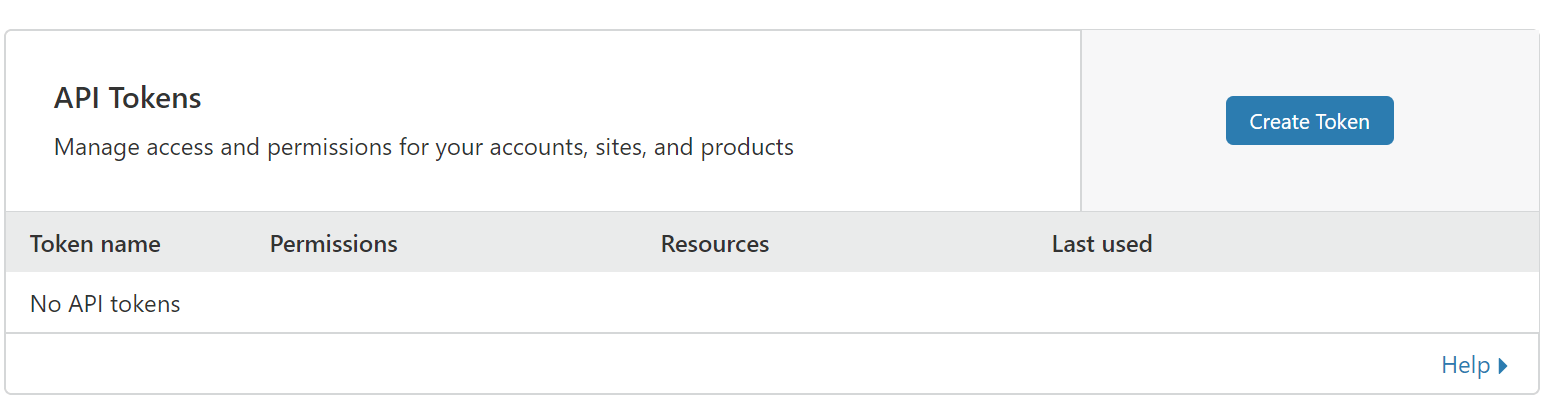
点击 create token:
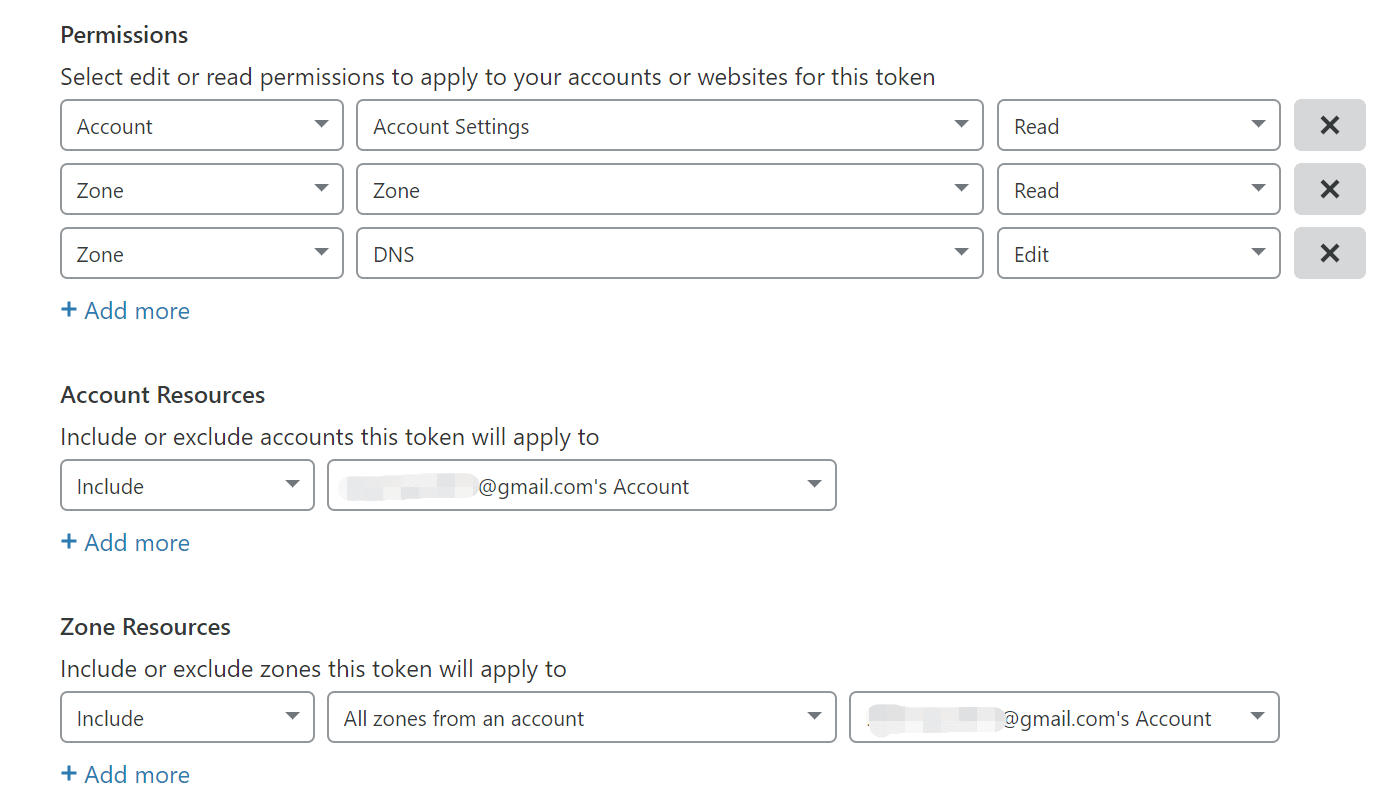
增加如下内容:
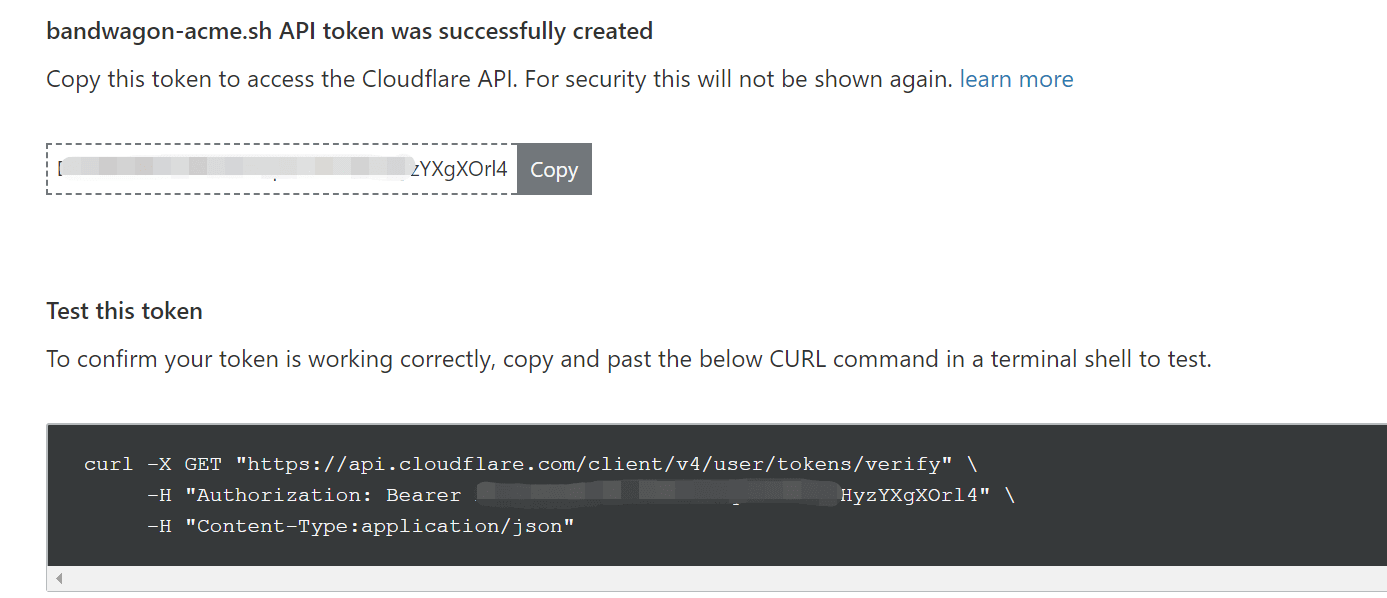
点击确认后,会显示 token,记录下来:
在终端根据上面的 account ID 和 token 输入如下命令:
export CF_Token="sdfsdfsdfljlbjkljlkjsdfoiwje"
export CF_Account_ID="xxxxxxxxxxxxx"
然后开始生成证书,可以指定顶级域名和泛域名:
acme.sh --issue --dns dns_cf -d example.com -d *.example.com
CF_Tokenand CF_Account_ID will be saved in ~/.acme.sh/account.conf and will be reused when needed.
没有报错信息,代表生成成功,如果有报错,查看生成 api token 时候的权限设置有没有问题。
默认生成的证书都放在安装目录下: /root/.acme.sh/, 请不要直接使用此目录下的文件, 例如: 不要直接让 nginx/apache 的配置文件使用这下面的文件. 这里面的文件都是内部使用, 而且目录结构可能会变化.
正确的使用方法是使用 --installcert 命令,并指定目标位置, 然后证书文件会被copy到相应的位置, 例如:
acme.sh --install-cert -d domain.you \
--key-file /etc/nginx/domain.you/key.pem \
--fullchain-file /etc/nginx/domain.you/cert.pem \
--reloadcmd "service nginx force-reload"以上命令安装证书后,会每 60 天自动更新证书,并自动运行 service nginx force-reload。我喜欢将证书放到 nginx/domain.you 目录下。
server {
listen 443 ssl;
listen [::]:443 ssl;
server_name domain.you;
keepalive_timeout 70;
ssl_protocols TLSv1 TLSv1.1 TLSv1.2;
ssl_ciphers AES128-SHA:AES256-SHA:RC4-SHA:DES-CBC3-SHA:RC4-MD5;
ssl_certificate /etc/nginx/domain.you/cert.pem;
ssl_certificate_key /etc/nginx/domain.you/key.pem;
ssl_session_cache shared:SSL:10m;
ssl_session_timeout 10m;
...
}
重启Nginx服务: service nginx force-reload
这里用的是 service nginx force-reload, 不是 service nginx reload, 据测试, reload 并不会重新加载证书, 所以用的 force-reload
目前证书在 60 天以后会自动更新, 你无需任何操作. 今后有可能会缩短这个时间, 不过都是自动的, 你不用关心.
升级 acme.sh 到最新版 :
acme.sh --upgrade
如果你不想手动升级, 可以开启自动升级:
acme.sh --upgrade --auto-upgrade
之后, acme.sh 就会自动保持更新了.
你也可以随时关闭自动更新:
acme.sh --upgrade --auto-upgrade 0
以上就是使用acme.sh生成免费证书的简单过程,安装完成后使用https登录你的网站看能否正常访问,如果不能试着重启系统。
配置完成后可以到 ssl labs 测试:https://www.ssllabs.com/ssltest/index.html
关于 Nginx 安全性更强的配置参考: https://niekun.net/archives/187.html
Nginx记得还是一年前安装的,一直没有升级,最近发现版本都到了1.14了,我的还是1.4,就想做一次升级。由于使用Nginx用到一些配置文件,所以我预计升级会导致配置文件恢复到默认,所以查询了一些资料后,安全的做了升级。
备份nginx.conf配置文件:
cp nginx.conf nginx.conf.bak
我将自定义server放在单独文件夹内 /etc/nginx/my-server/, 所以配置文件是安全的,升级后需要重新在 nginx.conf 里 include 一下即可。
安装依赖包:
apt-get install curl gnupg2 ca-certificates lsb-release
设置安装稳定版:
echo "deb http://nginx.org/packages/ubuntu `lsb_release -cs` nginx" \
| sudo tee /etc/apt/sources.list.d/nginx.list导入 nginx 官方 key 使 apt 可以鉴定来源:
curl -fsSL https://nginx.org/keys/nginx_signing.key | sudo apt-key add -
Verify that you now have the proper key:
apt-key fingerprint ABF5BD827BD9BF62
The output should contain the full fingerprint 573B FD6B 3D8F BC64 1079 A6AB ABF5 BD82 7BD9 BF62 as follows:
pub rsa2048 2011-08-19 [SC] [expires: 2024-06-14]
573B FD6B 3D8F BC64 1079 A6AB ABF5 BD82 7BD9 BF62
uid [ unknown] nginx signing key <signing-key@nginx.com>安装Nginx,期间会提示有些文件要修改,根据提示覆盖Y或查看不同D,'N'保留原文件:
apt-get update
apt-get install nginx
如果安装失败,提示 error 类似:/var/cache/apt/archives/nginx_1.14.1-1~trusty_amd64.deb,运行下面命令:
apt-get -f install
apt-get remove nginx-common
apt-get install nginx
安装完成后,打开备份的nginx.conf.bak文件,将里面你之前做了自定义修改的字段复制回当前nginx.conf文件内,或者恢复单独的在文件夹的配置文件,并在 nginx.conf 里 include 一下。
检查配置文件是否正确:
service nginx configtest
重启Nginx服务:
service nginx reload
service nginx start
以上就完成了从官方源 Nginx 的安装/升级。
nginx源码编译适用于需要安装第三方的一些模块的情况,例如需要 fancyindex 等模块。
nginx 使用 GNU 编译系统,使用 configure 和 make 来工作,关于 GNU 编译系统的详细说明参考:https://blog.niekun.net/archives/883.html
首先检查是否安装了 g++ 编译器,执行:
gcc -v
如果返回错误,说明缺少 gcc 编译器:
sudo apt install gcc g++ -y
从此处下载最新源码:http://nginx.org/en/download.html
下载源码并解压:
wget http://nginx.org/download/nginx-1.17.6.tar.gz
tar -zxvf nginx-1.17.6.tar.gz
下载第三方模块,如:fancyindex:
git clone https://github.com/aperezdc/ngx-fancyindex.git ngx-fancyindex
建立安装目录:
mkdir /opt/nginx-1.17.6
ln -s /opt/nginx-1.17.6 /opt/nginx
运行配置脚本:
cd nginx-1.17.6
./configure --add-module=../ngx-fancyindex [其他参数项]
如果要加入多个第三方模块,需要单独再用一个 --add-module=...
其他参数项:
如果不知道该加入那些附加编译参数,通过 nginx -V 可以查看当前官方预编译版本的配置变量。
我使用的配置如下,使用了两个第三方 module:
./configure --prefix=/opt/nginx-1.17.6 \
--user=nginx --group=nginx \
--with-compat --with-file-aio --with-threads \
--with-http_addition_module --with-http_auth_request_module --with-http_dav_module --with-http_flv_module --with-http_gunzip_module --with-http_gzip_static_module --with-http_mp4_module --with-http_random_index_module --with-http_realip_module --with-http_secure_link_module --with-http_slice_module --with-http_ssl_module --with-http_stub_status_module --with-http_sub_module --with-http_v2_module \
--with-mail --with-mail_ssl_module \
--with-stream --with-stream_realip_module --with-stream_ssl_module --with-stream_ssl_preread_module \
--add-module=../echo-nginx-module \
--add-module=../ngx-fancyindex需要提前安装的 library 库:
libpcre3-devzlib1g-devlibxml2-devlibxslt1-dev官方编译手册里面列出了所有可用的编译参数:http://nginx.org/en/docs/configure.html
执行后如果有报错,一般是设定参数里有需要的依赖环境未安装,如:openssl,PCRE Library 等。根据提示安装需要的库再次执行 configure。
编译和安装:
make
make install
可执行文件路径为:/opt/nginx/sbin/nginx,添加到系统 PATH 路径:
Ln -s /opt/nginx/sbin/nginx /usr/local/bin/nginx
刷新 link 及缓存:
ldconfig
测试是否可用:
nginx -v
如果安装失败,提示 error,尝试运行下面命令,然后再次执行上面的 make install:
apt-get -f install
apt-get remove nginx-common
安装完成后的设置和上面 ppa 安装类似。
如果运行 service nginx start 后,nginx 无法运行,查看 80 端口是否被占用,选择卸载或 kill 相关进程:
lsof -i:80
如果使用 systemd 管理进程,需要手动添加 service 服务文件。
在 /usr/lib/systemd/system/ 目录下新建文件 nginx.service,内容如下:
[Unit]
Description=The NGINX HTTP and reverse proxy server
After=syslog.target network-online.target remote-fs.target nss-lookup.target
Wants=network-online.target
[Service]
Type=forking
PIDFile=/opt/nginx/logs/nginx.pid
ExecStartPre=/usr/local/bin/nginx -t
ExecStart=/usr/local/bin/nginx
ExecReload=/usr/local/bin/nginx -s reload
ExecStop=/bin/kill -s QUIT $MAINPID
PrivateTmp=true
[Install]
WantedBy=multi-user.target重新加载配置文件:
systemctl daemon-reload
启动服务:
systemctl start nginx
开机启动:
systemctl enable nginx
以上就是 nginx 的安装教程。
]]>